How to Add a PPA to Ubuntu
When writing about applications we often say ‘add the following PPA to your Software Sources’ – but just how does one do it?
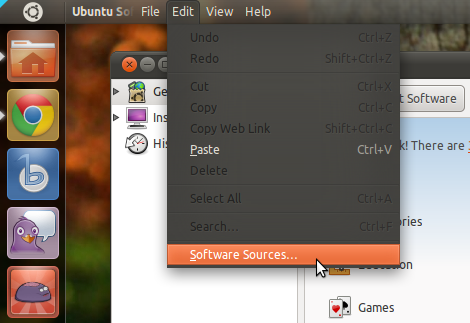
In the ‘Edit’ menu select ‘Software Sources’.

A small pop-up will appear asking you to enter your password to ensure changes being made have your approval.
Enter your password then click ‘OK’.
 Another small window will open. It’s here you paste/type the ‘PPA’ address given in an article (which we usually write in bold).
 Make sure you enter it carefully. Then click ‘Add Source’.

Once this refresh has completed – you’ll see the ‘In Progress…’ wording disappear – you’re free to search for and install applications from the PPA just like any other application in the Software Centre.
ขอบคุณบทความจาก
http://www.omgubuntu.co.uk/how-to-add-a-ppa-to-software-sources-in-ubuntu
และอีกที่นึง
http://askubuntu.com
Add a PPA to Ubuntu via the Ubuntu Software Centre
Open The Ubuntu Software Centre and ‘mouse’ over the top panel to reveal the Application Menu.In the ‘Edit’ menu select ‘Software Sources’.
A small pop-up will appear asking you to enter your password to ensure changes being made have your approval.
Enter your password then click ‘OK’.
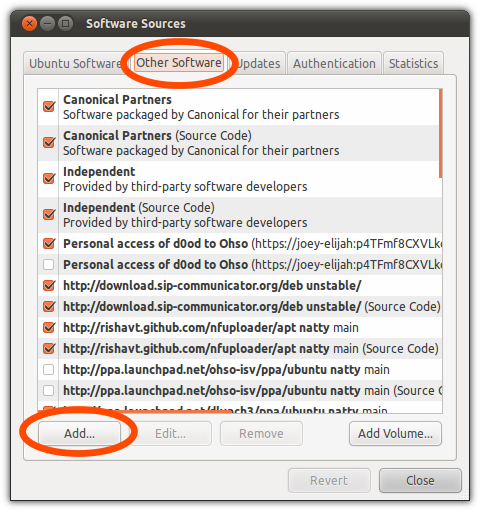
Another window, pictured below,
will open. Along the top of the window are a row of tabs. Click on the
second tab, named ‘Other Software’, followed by the ‘Add’ button located
towards the bottom
 Another small window will open. It’s here you paste/type the ‘PPA’ address given in an article (which we usually write in bold).
 Make sure you enter it carefully. Then click ‘Add Source’.
After doing this the Ubuntu Software Centre will update its ‘Package list’ with apps available in the PPA you’ve added.
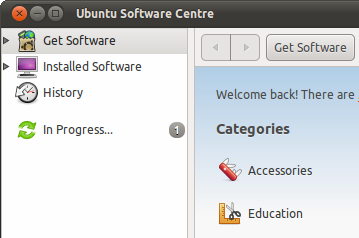
Once this refresh has completed – you’ll see the ‘In Progress…’ wording disappear – you’re free to search for and install applications from the PPA just like any other application in the Software Centre.
ขอบคุณบทความจาก
http://www.omgubuntu.co.uk/how-to-add-a-ppa-to-software-sources-in-ubuntu
และอีกที่นึง
http://askubuntu.com

ไม่มีความคิดเห็น:
แสดงความคิดเห็น